
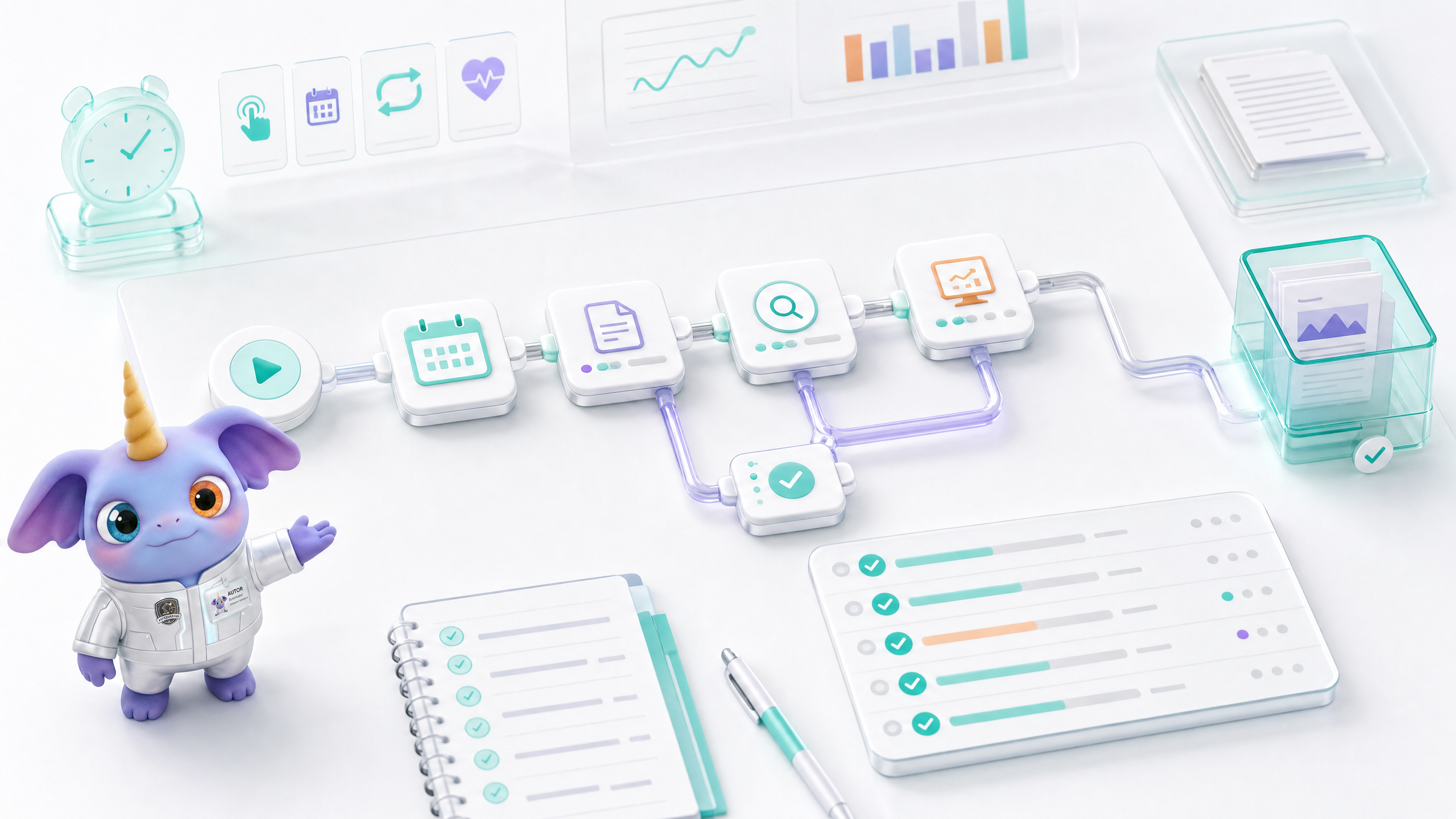
What is an Automator?
Automator is not a chat, but a reusable task process. Users need to understand what a workflow is before configuring triggers, steps, test runs, and run history.
- Save recurring tasks into workflows.
- Supports manual triggering, one-time operation and scheduled operation.
- Each workflow contains triggers, steps, inputs, experts, outputs, and history.
- It can be tested before being officially launched.
- Suitable for weekly reporting, monitoring, content updating, routine material generation and process-based office work.
Quick start
- Open Automator and create a new workflow.
- Write down workflow goals and final deliverables.
- Choose the trigger method: manual, one-time time or periodic schedule.
- Add steps, specifying the experts and input sources used at each step.
- Run Test Run to check the results.
- Enable it after confirming it is correct, and check the running history regularly.
triggers and plans
Triggers determine when the Automator runs.
- Manual: User manual operation, suitable for unfixed but repetitive work.
- Scheduled: Run by day, week, month or specified time.
- One-time: Execute once in the future.
- Heartbeat/monitoring: Suitable for tasks that require periodic checking, but the frequency and integral cost must be controlled.
- Pause and Resume: Pause when not needed temporarily, not delete.
step design
A good workflow should be broken down into checkable steps rather than cramming all the requirements into one overly long prompt.
Test runs and run history
The most common problem with Automator is "direct online". Help centers must remind users to test first.
- Test Run is used to verify prompts, files, permissions, and output formats.
- Live Runs are official runs that may consume points and produce official results.
- The run history should show time, status, output, failure reason, and retry entries.
- Modify the steps first after failure, don't just rerun it over and over again.
- Scheduled tasks should be checked regularly to see if they still have business value.
Additional images and videos needed
Image and video list
Image: Automator Canvas
Show triggers, steps, inputs, outputs, and completion nodes.
Image: Test Run results
Show test run status and output preview.
Image: Running History
Show success, failure, pause, and next run time.
Video: Create Weekly Report Automation
Complete process from creation to testing to enabling the plan.
FAQ
Q: What is the difference between Test Run and official run?
Test Run is used to verify the process and should not directly represent long-term automation quality; the official run will be performed as set up and may consume points.
Q: Can an Automator have multiple steps?
Yes, and it is recommended to split complex work into multiple steps to facilitate problem location and reuse of intermediate results.
Q: Will timed tasks consume points?
Yes. Each run may cost points based on task type, especially video, picture, and high-frequency surveillance tasks.
Q: Can I pause automation?
Yes. It is recommended to pause when not in use temporarily and retain the configuration and history.
Q: What should I do if the workflow fails?
Check the failed steps and inputs, correct the prompts, files or permissions before testing again. Do not blindly repeat the official run.