
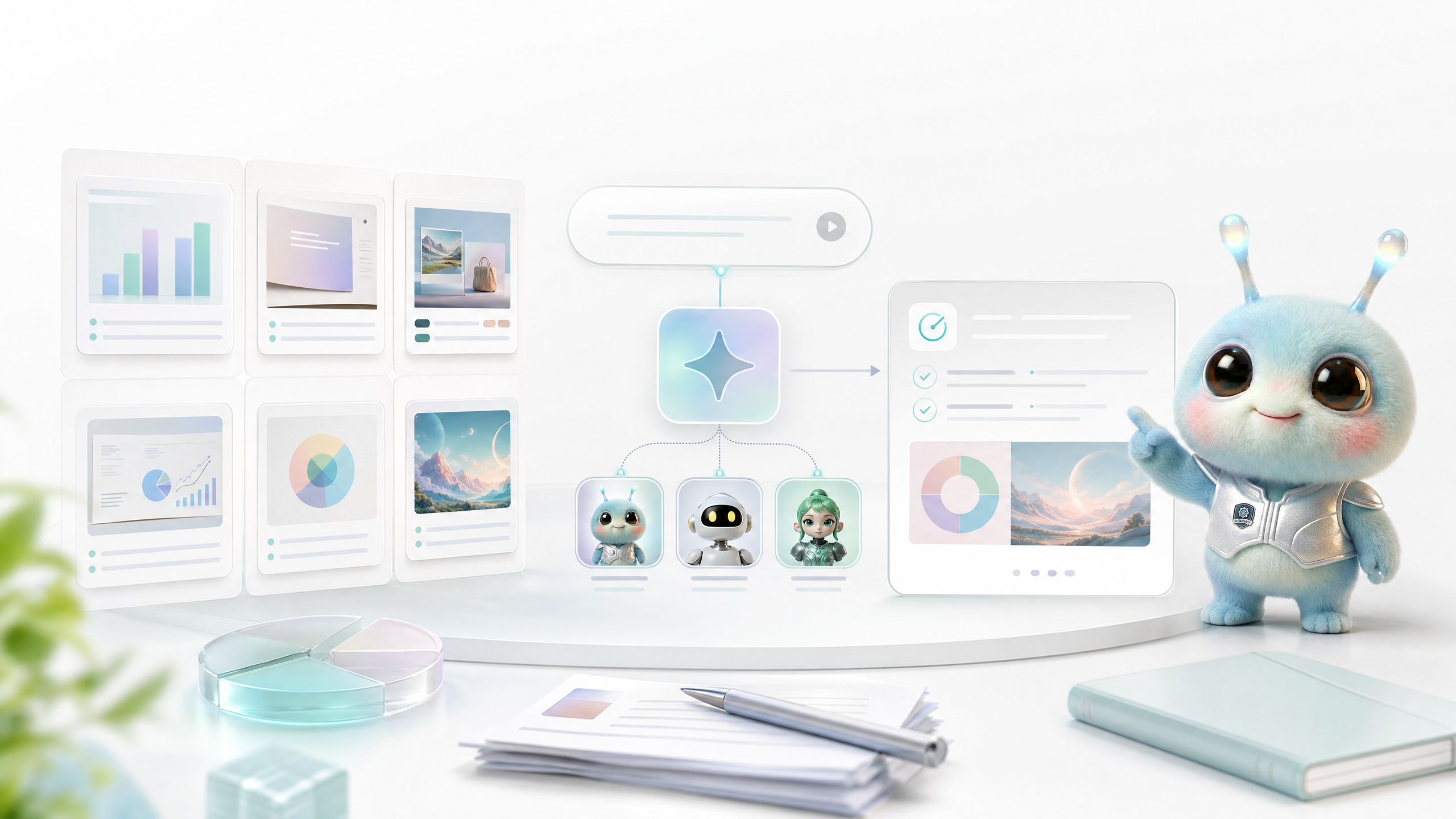
What are templates and Smart Intents?
Templates solve the problem of "what structure to start with", and Smart Intent solves the problem of "who should do it?" When using templates, users need to understand the relationship between templates, sets, intelligent routing, and locking experts at the same time.
- Template: A single structured starting point, such as a market report, PPT outline, product poster, weekly report.
- Package: a combination of multiple templates, such as research report + PPT + social media graphics.
- Smart Intent: Wery automatically selects expert and execution modes based on the goal.
- Lock Expert: Users explicitly specify experts such as Zeny, PPTea, Cella, etc.
- Confirmation Cards: Let users confirm scope, parameters, and deliverables before a high-cost or multi-step task.
Entrance and selection methods
The template entrance requires users to understand the purpose first and then decide whether to use it.
- Open the template entrance in the home page input box.
- Search templates by expert, output type, industry or task.
- Check out the template preview, applicable scenarios and required content.
- Choose a single template or set.
- Supplement with real business information: topic, audience, materials, branding, language, and restrictions.
- Keep Smart Intents automatically routed, or lock template mapping experts.
Smart Intent and Locking Expert
Users shouldn't be forced to memorize every tool, but advanced users need explicit control.
- Not sure who to use: Keep Smart Intent and let Wery decide automatically.
- Sure to picture: Lock Zeny.
- Confirm you want to PPT: Lock PPTea.
- Sure to form: lock Cella.
- Definitely looking into: Lockdown Doi.
- Across multiple deliverables: Leave it to the Wery Manager, don’t let a single expert do it all.
How to write template input
Templates are not magic. It provides structure, but the quality of the results still depends on what the user provides.
- Describe the end use: reporting, sales, social media, official website, internal review or customer delivery.
- Describe the audience: boss, customers, investors, team, users or public audience.
- Upload source material or explicitly unsourced material.
- List elements that must be included, must be avoided, and must be retained.
- The image template should include proportions, copywriting, brand colors, and reference image characters.
- The document/PPT template should include the number of pages, structure, tone and output format.
Weekly report template
Use the weekly report template to organize these original notes into "this week's progress, risks, required decisions, and next week's plan" in concise language for management.
Activity package
Use the new product release package to generate the main visual direction, 3 social media pictures, release copy and asset checklist, and the brand tone is high-end, clean and technological.
Research to PPT
First organize the data according to the market research template, and then use PPTea to convert it into a 10-page Chinese strategy report. The conclusion must be given on the first page.
Management, reuse and versions
The template page also explains how users can reuse successful structures from the past.
- Save frequently used prompt words into reusable templates.
- Use kits for recurring activities such as weekly reports, monthly reviews, and product launches.
- Select historical results from Assets as reference material for the new template.
- Templates should not override explicit user requirements for this round.
- If the template conflicts with user materials, the requirements after user confirmation shall prevail.
Additional images and videos needed
This page shows the actual template selection and Smart Intent controls.
Image and video list
Image: Template selection drop-down box
Display template search, classification and preview.
Image: Smart Intent and Lock Expert
Showcasing automated routing and locking expert entry.
Image: Package template confirmation card
Display multiple templates, multiple image quantities and parameter confirmation.
Video: From template to task execution
Demonstrates selecting a template, supplementing information, confirming, and entering Workspace.
FAQ
Q: What is the difference between template and Agent?
Template is the task structure; Agent is the execution role. Templates can be given to different Agents, but there will usually be an expert who is the most suitable.
Q: When should I turn off Smart Intent?
When you know exactly which expert is responsible, for example, only Zeny will do the drawings or only PPTea will do the PPT, you can lock the expert.
Q: Will templates limit my creation?
No. Templates provide structure, but you can still add material, modify styles, and specify output and constraints.
Q: Why does the set of templates generate multiple pictures or files?
A set represents a set of related deliverables, such as multiple materials, multiple pages, or multiple steps, which should be generated separately by sub-templates.
Q: What should I do if the template result is not good?
The input is first checked for missing business information, and then Wery is asked to retain the template structure but modify the content, style, or output format.