

Quick answer
GPT Image 2.5 improves visual rendering, reference-subject preservation, multi-turn editing, and generation speed. Choose Flare for rapid exploration and higher-volume creation. Choose Sunburst when final image quality or precise editing matters more. GPT Image 2 remains capable, and features such as image inputs, editing, and qualifying 4K output are not exclusive to 2.5.GPT Image 2.5 is more than a new version number. Compared with GPT Image 2, the new generation improves image quality, reference-image preservation, editing reliability, and generation speed, while introducing two models built for different creative workflows: Flare and Sunburst.
Flare is optimized for fast, high-quality image generation. Sunburst is designed
for more demanding work where image quality and editing precision matter more.
GPT Image 2.5 also adds xhigh and max quality settings
on top of low, medium, high, and
auto.
Some capabilities, however, are not new. GPT Image 2 already supported image inputs, image editing, and qualifying 4K output sizes. The real question is not simply what GPT Image 2.5 can do, but how well and how quickly it can do the same creative work.
What Is GPT Image 2.5?
GPT Image 2.5 is OpenAI's latest image-generation family. In the API, it is available through two models:
- GPT Image 2.5 Flare is optimized for speed and everyday generation.
- GPT Image 2.5 Sunburst is optimized for higher image quality and more precise creative work.
Both can generate images from text and edit images provided as inputs. According to OpenAI, GPT Image 2.5 produces more natural lighting and richer textures, preserves subjects in reference images more effectively, and follows editing instructions more reliably across multiple turns. OpenAI also reports up to 50% lower image-generation latency compared with Images 2.0.
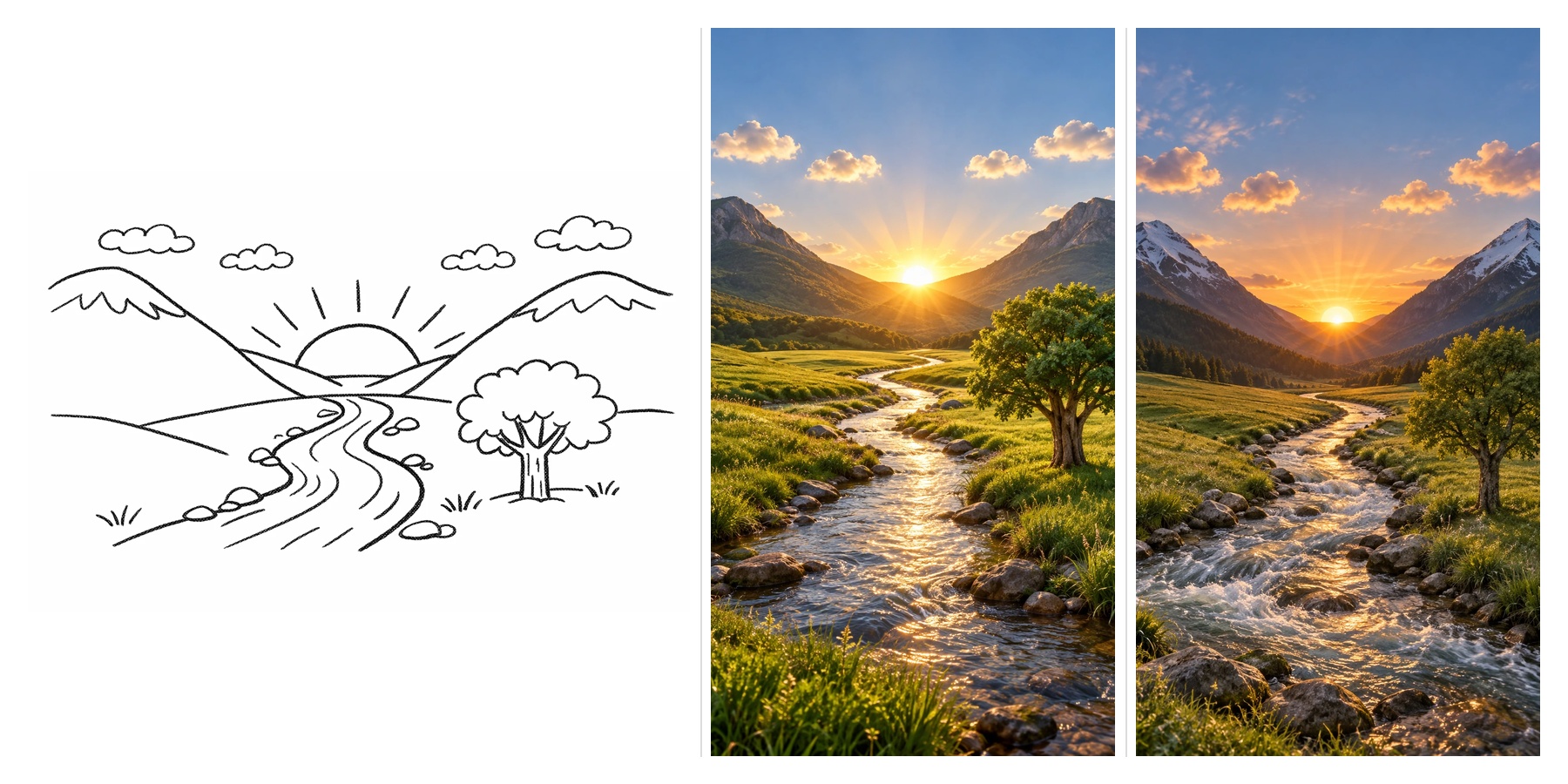
That makes the upgrade especially relevant for workflows where you rarely stop after the first generation. A creator might generate a campaign image, change the outfit, adjust the weather, remove an object, and then reframe the result for another format. Improvements in consistency across those steps can matter more than a single impressive first image.
GPT Image 2.5 vs GPT Image 2: What Changed?
The biggest difference is not one isolated feature. GPT Image 2.5 improves several parts of the image workflow at once.
| Capability | GPT Image 2 | GPT Image 2.5 |
|---|---|---|
| Model options | One GPT Image 2 model | Flare and Sunburst |
| Text-to-image generation | Supported | Supported |
| Image editing | Supported | Improved editing precision |
| Reference-image preservation | Supported | Improved subject preservation |
| Multi-turn editing | Supported | More reliable consistency across successive edits |
| Visual quality | Strong image generation | More natural lighting and richer textures |
| Generation speed | Previous baseline | Up to 50% lower generation latency |
| Quality settings | low, medium, high, auto | Adds xhigh and max |
| Custom image sizes | Supported | Supported |
| Qualifying 4K output | Supported | Supported |
It is important not to treat every existing feature as a new GPT Image 2.5 capability. GPT Image 2 already accepted high-fidelity image inputs and supported image editing and flexible dimensions, including qualifying 4K sizes. GPT Image 2.5 improves the workflow around those capabilities rather than introducing all of them from scratch.
Better Visual Rendering
OpenAI describes GPT Image 2.5 as producing more natural lighting and richer textures. That difference can matter in prompts where realism depends on how surfaces interact with light: skin, fabric, glass, food, metal, interiors, or outdoor environments.
Instead of looking only for more detail, compare whether the image feels physically coherent. Look at shadow direction, material texture, reflections, skin rendering, and how foreground objects sit within the environment.
Better Reference-Subject Preservation
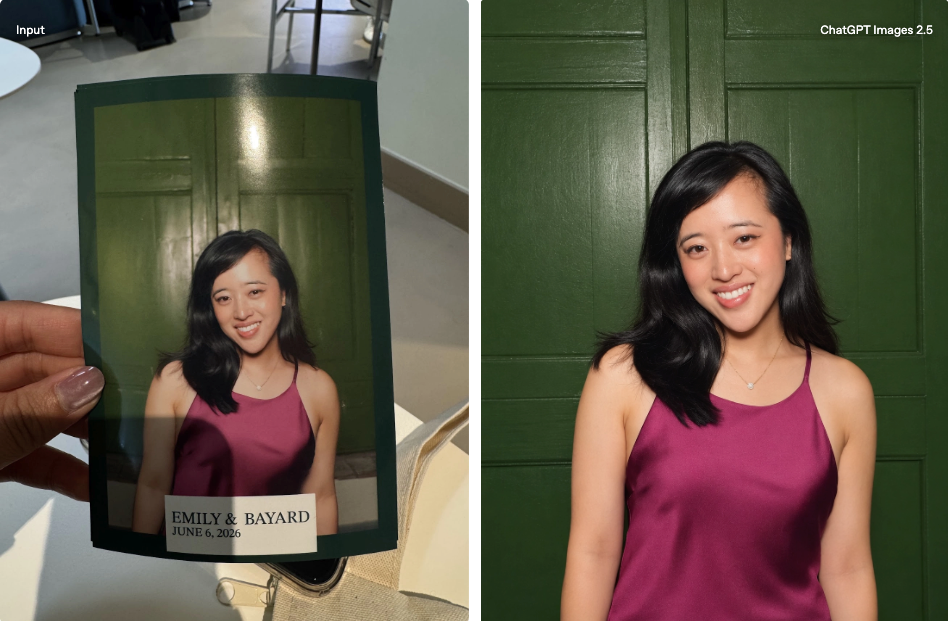
One of the more useful improvements is stronger preservation of subjects from reference images. This matters when the goal is not to reinvent an image but to change one part of it while keeping the important subject recognizable.
For example, you might provide a portrait and ask the model to replace the subject's clothing, move them into another environment, change the weather, adjust surrounding objects, or preserve their face, pose, and proportions while altering the scene.
GPT Image 2.5 is designed to retain reference subjects more effectively during this kind of editing. That does not mean every generated detail will remain pixel-identical. When identity, product shape, logos, or exact geometry matter, the final image should still be checked against the source.
More Reliable Multi-Turn Editing
Image workflows often fail gradually rather than immediately. The first edit may look right, but after several changes a person's face shifts, an object changes shape, the camera moves, or previously approved details disappear.
GPT Image 2.5 improves instruction following across successive edits, which makes it better suited to conversational workflows where an image develops over multiple steps.
Initial generation: create a fashion editorial image in a hotel lobby.
Edit 1: change the model's jacket from black to red.
Edit 2: make the scene a rainy evening.
Edit 3: remove the person in the background.
Edit 4: keep the subject and composition but make the lighting softer.
The important test is not whether Edit 4 looks good in isolation. It is whether the model still preserves the subject, composition, and details established earlier.
Faster Image Generation
GPT Image 2.5 also targets generation speed. OpenAI reports up to a 50% reduction in image-generation latency compared with Images 2.0.
That difference is particularly useful during exploration. If you are testing ten compositions, several product directions, or multiple ad concepts, waiting less for each generation can change how quickly you iterate. Speed is also one of the main reasons Flare exists as a separate model.
GPT Image 2.5 Flare
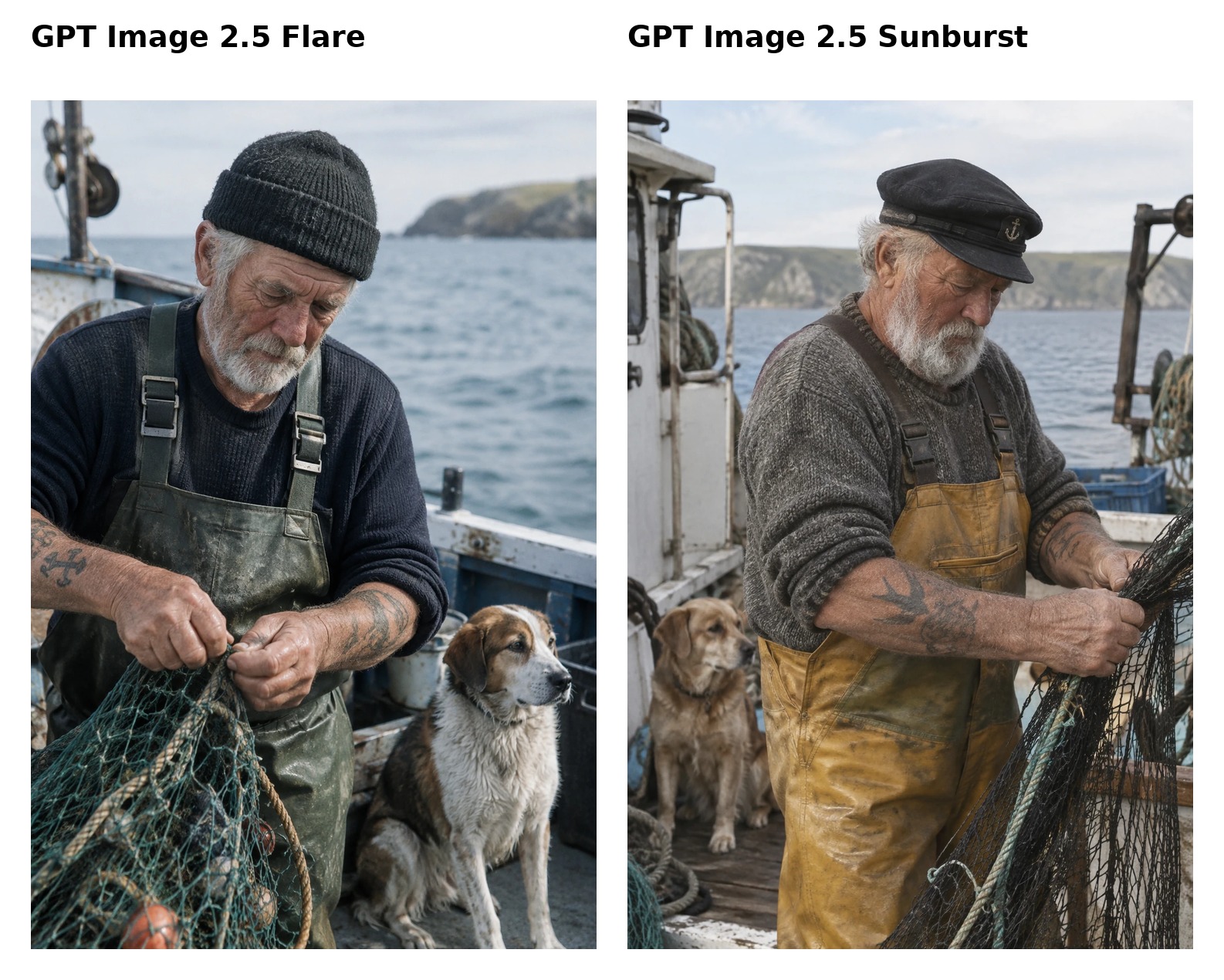
Flare is the smaller model and is optimized for speed. OpenAI describes its image quality as comparable to GPT Image 2 while also bringing the newer generation's editing and subject-preservation improvements.
It makes sense when you need to:
- explore multiple visual directions quickly;
- generate social media images;
- test compositions and styles;
- create early campaign concepts;
- produce a larger volume of assets; or
- iterate before committing to a final image.
Think of Flare as the model for the exploratory part of the creative process.
GPT Image 2.5 Sunburst
Sunburst is the base model and prioritizes image quality. OpenAI positions it above GPT Image 2 in image quality and recommends it when demanding quality requirements are the priority.
It makes sense when you need:
- higher-quality final assets;
- precise edits to an existing image;
- better preservation of a person or product;
- multi-reference compositions;
- detailed campaign imagery; or
- controlled changes to an established scene.
Sunburst may take longer than Flare, so the highest-quality model is not automatically the best choice for every generation.
Flare or Sunburst: Which Should You Choose?
Start with Flare when speed matters. Use Sunburst when fidelity and final quality matter more.
If you are brainstorming six compositions for an ad, Flare is a reasonable starting point. Once one direction works, test Sunburst for the more demanding final generation or editing stage.
The model and the quality setting should also be treated as separate choices.
GPT Image 2.5 supports auto, low, medium,
high, xhigh, and max. Higher settings can
increase rendering effort, but using max does not guarantee that every prompt
will produce a visibly better image.
OpenAI recommends choosing the model first, keeping the prompt, reference images, and dimensions consistent when comparing models, and increasing quality only when the current result does not meet the requirement. Do not automatically use Sunburst plus max for every image. For early exploration, that may simply increase generation time without improving the part of the image you care about.
Where GPT Image 2.5 Makes the Biggest Difference
1. Rapid Creative Exploration
When the goal is to discover a direction rather than produce the final asset immediately, speed becomes part of the creative process. Use Flare to test camera angles, lighting setups, environments, art directions, layouts, and visual concepts. Once the strongest direction is clear, move to a more demanding generation if necessary.
2. Advertising and Product Images
Product imagery often depends on details staying consistent while everything around them changes. You may want to preserve a bottle, shoe, or device while experimenting with a new background, seasonal styling, different lighting, campaign compositions, or surrounding props. Improved subject preservation makes GPT Image 2.5 more useful for this kind of controlled creative variation.
3. Character and Portrait Editing
Reference consistency becomes particularly visible with people. Changing clothing or environment is easy to request; keeping the person's identity, proportions, and expression consistent during that edit is harder. Explicitly tell the model which attributes must remain unchanged rather than describing only what should change.
4. Multi-Step Image Editing
GPT Image 2.5 is better suited to workflows that behave like an editing conversation. Instead of rewriting the full prompt every time, you can develop an image incrementally: generate, adjust, remove, relight, and refine. Better multi-turn editing can become more valuable than raw text-to-image quality alone.
5. Editorial and Social Visuals
For blog covers, social posts, and editorial illustrations, creators usually need several variations before choosing one. Flare can be useful for finding the concept quickly, while Sunburst can be reserved for assets where final visual quality or a specific edit justifies the longer generation time.
How to Compare GPT Image 2.5 With GPT Image 2
The most useful comparison is not to generate two unrelated images and decide which one looks better. Run a controlled test. Keep the prompt, reference image, aspect ratio, image dimensions, and quality setting identical where they are comparable.
Test 1: Photorealism and Lighting
Use a scene containing skin, fabric, reflective surfaces, and mixed lighting. Check whether the light sources make sense, along with texture quality, skin rendering, shadows, reflections, and background realism.
Test 2: Reference Preservation
Provide a portrait or product image and change only one major element. For example: “Replace the woman's black coat with a cream wool coat. Preserve her face, hair, expression, pose, body proportions, background, camera angle, and lighting.” Then compare how much of the original subject changes unintentionally.
Test 3: Multi-Turn Editing
Start with one image and perform three or four sequential edits. After each edit, check whether previously approved details remain intact. This gives a clearer picture of editing reliability than judging a single generation.
Can GPT Image 2.5 Generate 4K Images?
Yes, but 4K support itself is not a GPT Image 2.5-exclusive upgrade. GPT Image 2 already supported qualifying 4K-size outputs. GPT Image 2.5 continues to support custom dimensions within its size constraints, including common 4K landscape and portrait dimensions.
OpenAI currently lists dimensions such as 3840 × 2160 and 2160 × 3840 as supported examples, while outputs above 2560 × 1440 remain experimental. Switching to GPT Image 2.5 specifically for “4K support” misses the more meaningful improvements in generation quality, editing, and speed.
Is GPT Image 2.5 Better Than GPT Image 2?
For many creative workflows, GPT Image 2.5 offers meaningful improvements, but the answer depends on what you are trying to optimize.
Choose Flare when you want faster exploration and generation.
Choose Sunburst when final image quality or controlled editing is more important.
GPT Image 2 can still generate and edit images, accept image inputs, and produce large outputs. The reason to move to GPT Image 2.5 is not access to image generation itself. It is the combination of faster generation, improved visual rendering, stronger reference preservation, and more reliable editing. For creators, that shift is most noticeable when the image is not finished after the first prompt.
Generate with GPT Image 2.5, refine the result with image edits, and compare creative directions in one workflow. Use your own prompt and reference image to see which model fits the job instead of judging from a demo alone.
Start creating with Wery.ai →