

An AI presentation maker can turn an idea into a slide deck. But what happens after that first draft matters just as much. A client changes the brief, your manager wants three slides removed, or the whole presentation needs to fit your company's existing template. How well a tool handles those changes often matters more than how quickly it generates the first version.
This is where the differences between tools become clear. Some focus on fast drafts and online sharing. Others emphasize visual storytelling, research, or turning documents and presentations you already have into something new.
This guide compares eight AI presentation tools. Start with the overview below, then explore each tool's features and use cases to decide which one fits your next presentation.
Eight AI Presentation Tools at a Glance
The table below highlights what each tool offers and the work it is best suited to. It is an overview, rather than an overall quality ranking.
| Tool | Key features | Best suited to |
|---|---|---|
| Wery PPTea | Generate drafts from a brief or reference files; organize the story for the audience; set the style and refine content and slide order. | Turn scattered ideas or material into client proposals, business reviews, pitches, and lessons. |
| Gamma | Generate content and layouts from prompts or documents; share online and export to PowerPoint or PDF, with a PPTX conversion route to Google Slides. | Create a first draft quickly and share it online with colleagues or clients. |
| Tome App AI | Generate decks, improve existing slide designs, convert PDFs into PPT, and create speaker notes. | Adapt existing files into presentations and prepare talking points. |
| Napkin AI | Turn text into diagrams; generate full presentations; explore layout options and export editable PPT files. | Explain processes, conceptual relationships, and operating models. |
| Prezi AI | Generate presentations from topics or files and present them with zooming and movement. | Deliver training, lessons, and live talks that connect the big picture with the details. |
| HIX AI | Generate slides from text, documents, URLs, or images; improve designs and export to PowerPoint. | Combine different reference materials in a broader AI workspace. |
| Skywork AI | Combine research with slide creation, alongside related document and spreadsheet tools. | Prepare market research, competitive analysis, and strategy presentations. |
| Oreate AI | Give Slides Agent a topic and requirements; access other content creation tools in the same workspace. | Work on slides, writing, and visual assets within one workspace. |
1 Wery PPTea: turn ideas and source material into a clear, editable presentation
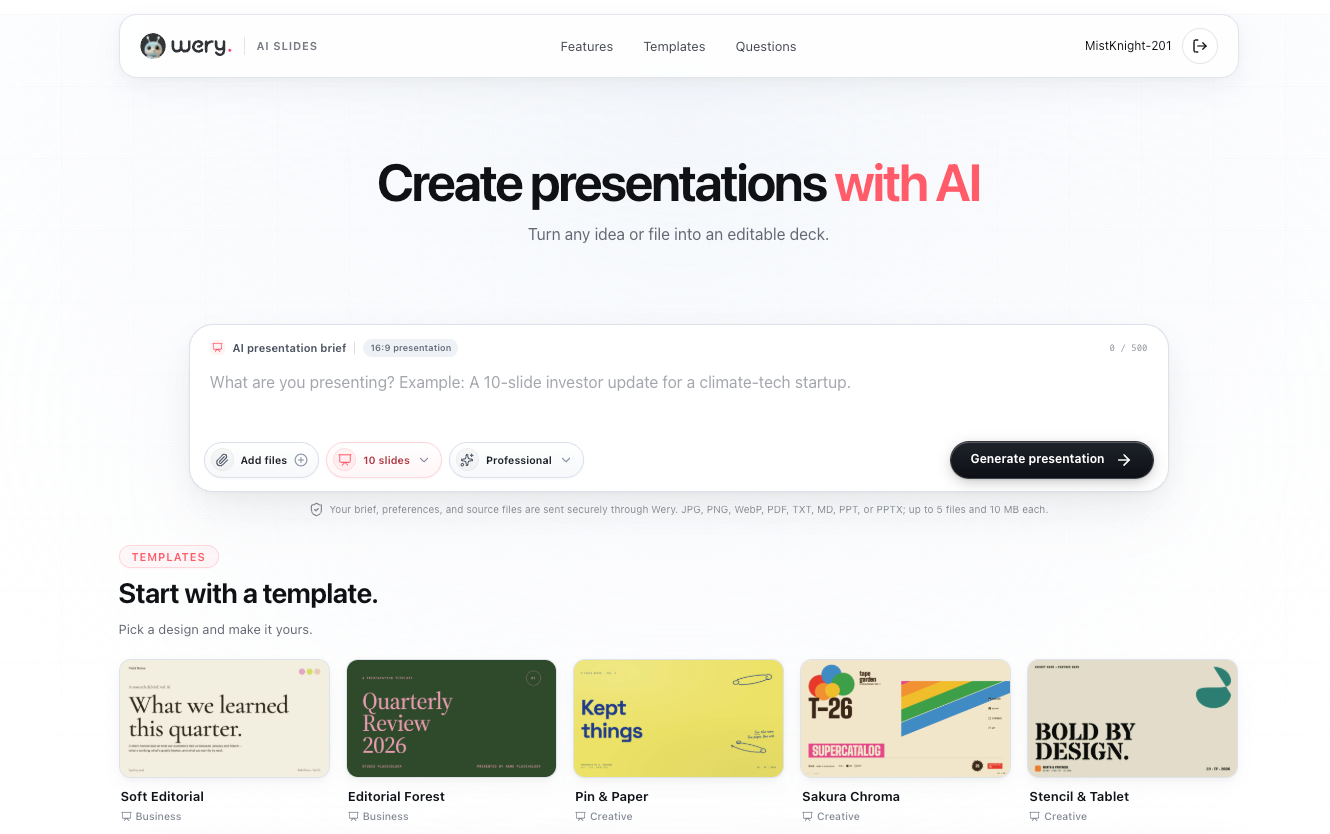
Have a topic but aren't sure how to develop it? Collected all the material but haven't found a clear story? Wery PPTea helps you turn either starting point into a presentation draft, then refine the content and visual design.
You can describe what you need or upload reference files, then specify your audience, objective, and key points. PPTea supports several stages of the process:
- Build a coherent narrative: Shape the opening, key messages, supporting evidence, and conclusion around your topic, audience, and objective, so every slide contributes to the same story.
- Adapt the content and style to your audience: Set the tone and presentation style before generating a draft, with wording, information density, and the balance of text and visuals suited to the occasion.
- Start with a template: Choose from business, creative, education, and technology templates to give your presentation a design starting point.
- Make information easier to understand: Use charts, tables, diagrams, layouts, and image direction to support the content you need to explain.
- Keep refining the draft: Adjust the narrative, edit slide text, reorder slides, and develop the visual direction within the Wery workspace.
The upload interface supports JPG, PNG, WebP, PDF, TXT, MD, PPT, and PPTX files, with up to five files per upload.
Whether you're preparing an investor pitch, client proposal, business review, product update, lesson, or training session, start with a clear brief. For example: "Create a 10-slide product proposal for prospective clients. Focus on the customer's problem, our solution, and the implementation plan. Use a clean, professional style."
Create a Presentation with Wery PPTea
2 Gamma: AI presentations built for online sharing and team feedback
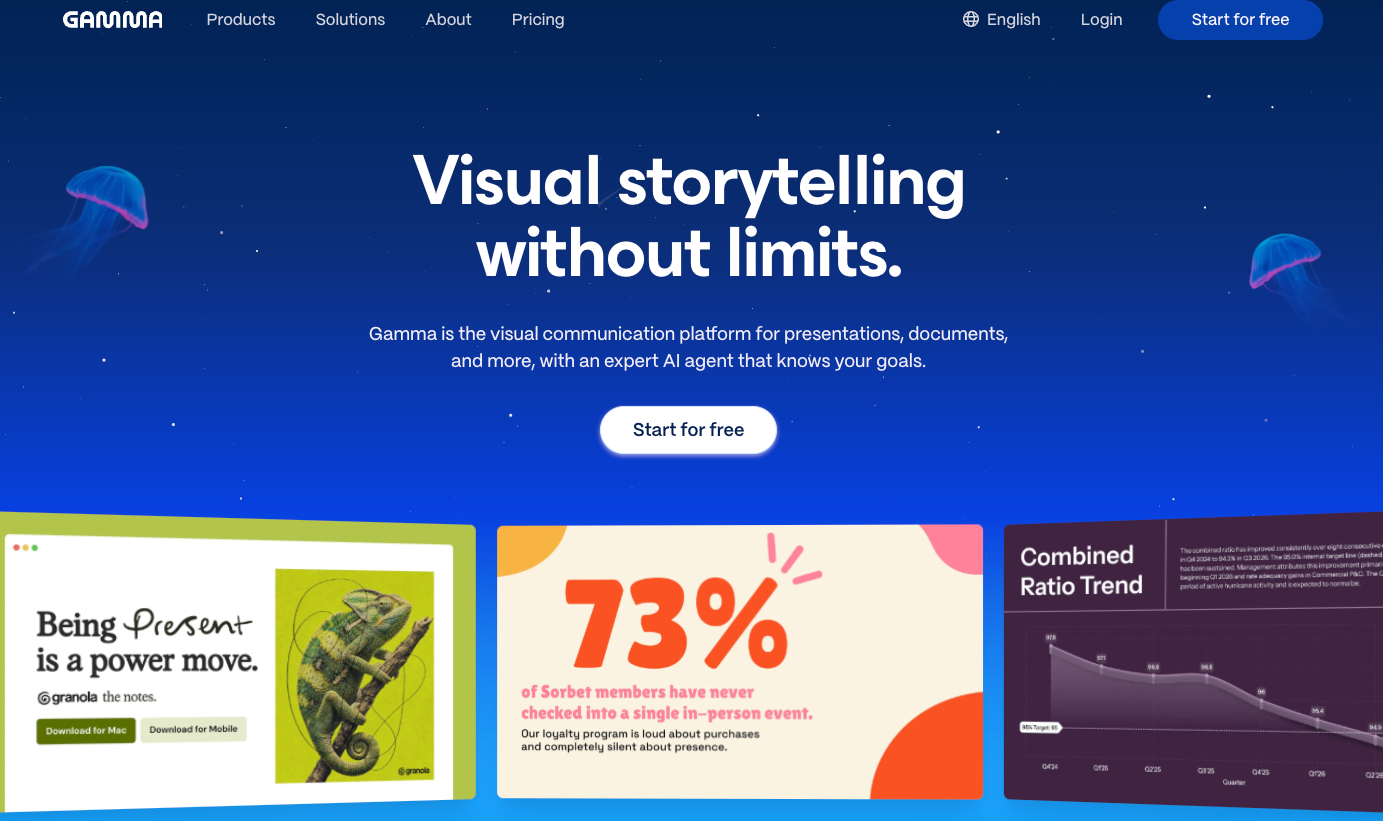
Gamma goes beyond generating slides from a topic. It brings creation, sharing, and feedback into one online workflow. Enter a prompt, paste an outline, or import a document to generate copy, layouts, and images, then refine the pages with natural-language instructions or manual edits. This approach is particularly useful for material that changes frequently or needs to be read independently.
- Generate and refine a draft: Start with a topic or source material, apply themes and smart layouts for a consistent look, then adjust individual pages.
- Share links and collaborate: Deliver the presentation through an online link and set viewing, commenting, or editing permissions so feedback stays with the content.
- See how people engage: Track unique visitors, page views, and time spent to understand what holds readers' attention. Full analytics require a Pro plan or higher.
- Export in multiple formats: Export to PDF, PNG, or PPTX. According to Gamma's help center, the route to Google Slides is to upload and convert the exported PPTX file.
Gamma is a good fit for project updates, sales overviews, and briefings that need asynchronous review. Colleagues and clients can open a link and read ahead of a meeting. If you need to deliver a PowerPoint file that meets company requirements, check the exported layouts and elements rather than assuming the file will look exactly like the browser version.
3 Tome App AI: repurpose source material and prepare to present
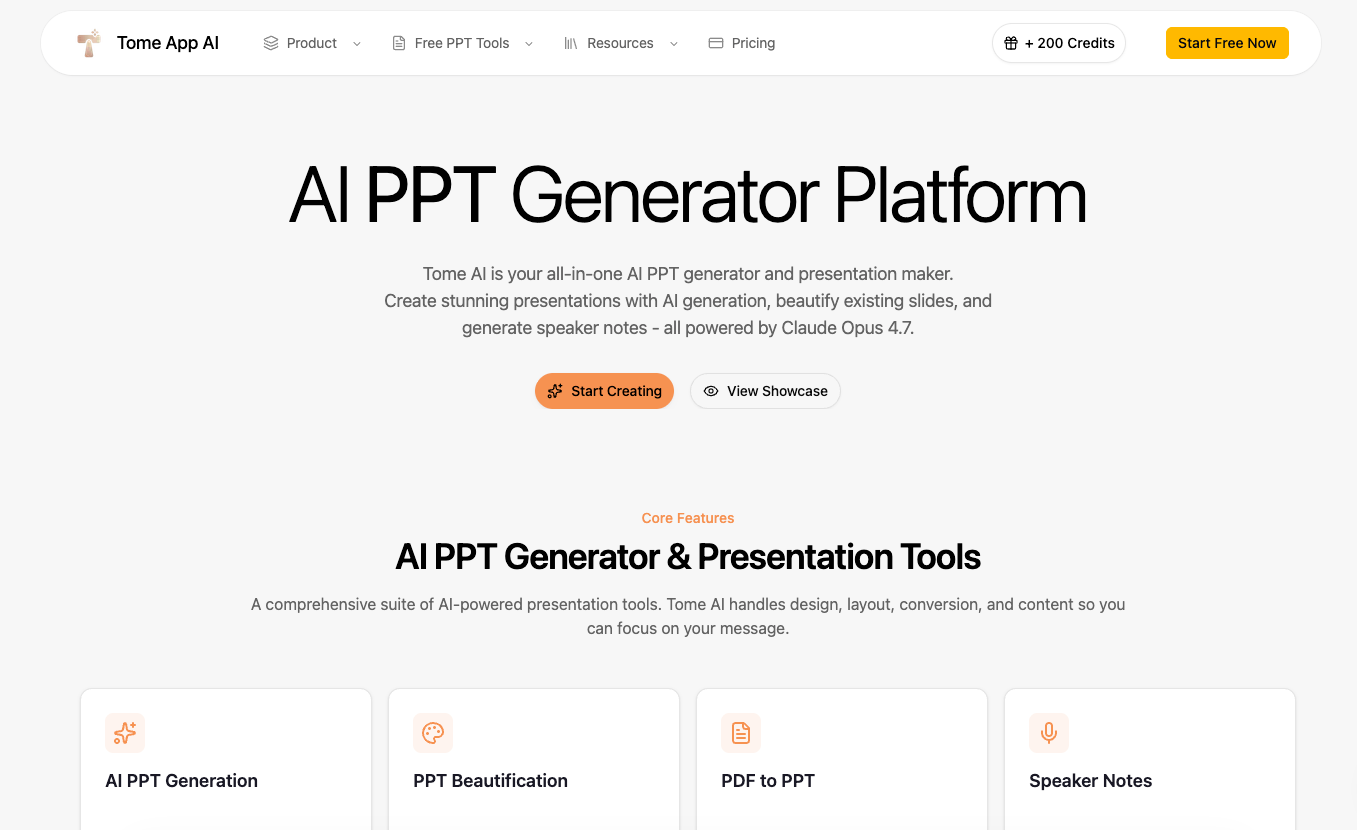
Tome App AI combines presentation generation, slide redesign, and content conversion. It is particularly useful when the content already exists but needs a different format: reports, spreadsheets, web pages, and even videos can become source material for a deck. This section covers tomeapp.ai; it should not be confused with the former tome.app product or reviews of that service.
- Turn different sources into slides: The official site lists conversion tools for PDF, Word, Excel, Markdown, plain text, and HTML, covering document structure, spreadsheet data, and web content.
- Convert YouTube videos into presentations: Submit a video link to extract key content and timing information, turning lectures, webinars, or product demos into slides.
- Improve slide design and analyze styles: Redesign existing slides, or use PPT Reverse Prompt to analyze colors, fonts, layouts, and spacing and produce a reusable design prompt. Style analysis does not mean the original file's template will be preserved in full.
- Add speaker notes and export: Generate talking points for each slide, preview and edit in the browser, and download a PPTX file.
Its main appeal is adaptation and reuse: turn a report into a client briefing, for example, then add notes for the presenter. When converting a video or long document, specify which arguments and data must remain so the result does more than compress the source into shorter text.
4 Napkin AI: explore slide options and explain ideas visually
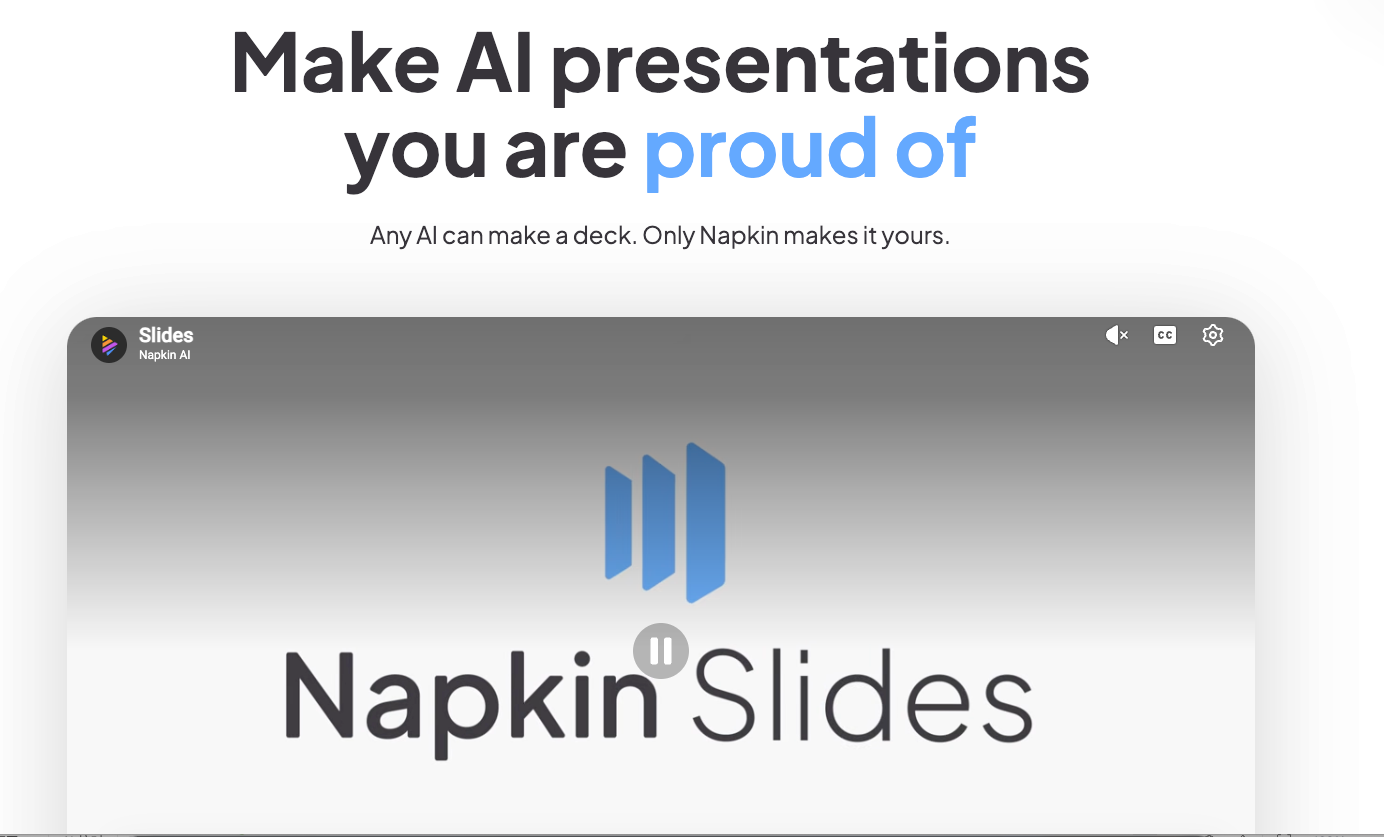
Napkin AI offers two distinct workflows. Visuals turns text into standalone diagrams, while Slides creates full presentations. Slides starts by clarifying the objective and outline, then offers alternative treatments for individual slides. You take part in the design choices instead of simply accepting a single generated deck.
- Agree on the story first: Enter an idea, paste notes, share a web link, or upload a PPT, PDF, or Word document. The Agent asks about your objective and audience, then presents an outline before generating slides.
- Compare options slide by slide: Explore text-led or visual-led designs, with more or less detail, and choose the version that works best. You can also request more alternatives.
- Use diagrams and brand styling: Explain processes and relationships through diagrams and charts. Set or apply colors and fonts through Brand Studio to keep the deck consistent.
- Edit and export: Change text, layouts, and visual elements directly, or ask the Agent to adjust them. Export options include PPT, PDF, PNG, and SVG. Napkin states that exported PPT files can be edited in PowerPoint, Google Slides, or Keynote.
Napkin is well suited to strategy presentations and educational content that explain processes, frameworks, and conceptual relationships. It also suits users who want a say in each slide's design. If you only need one diagram, use Visuals without generating a whole deck. Slides is currently labeled as a beta product.
5 Prezi AI: connect the big picture with the details on a zoomable canvas
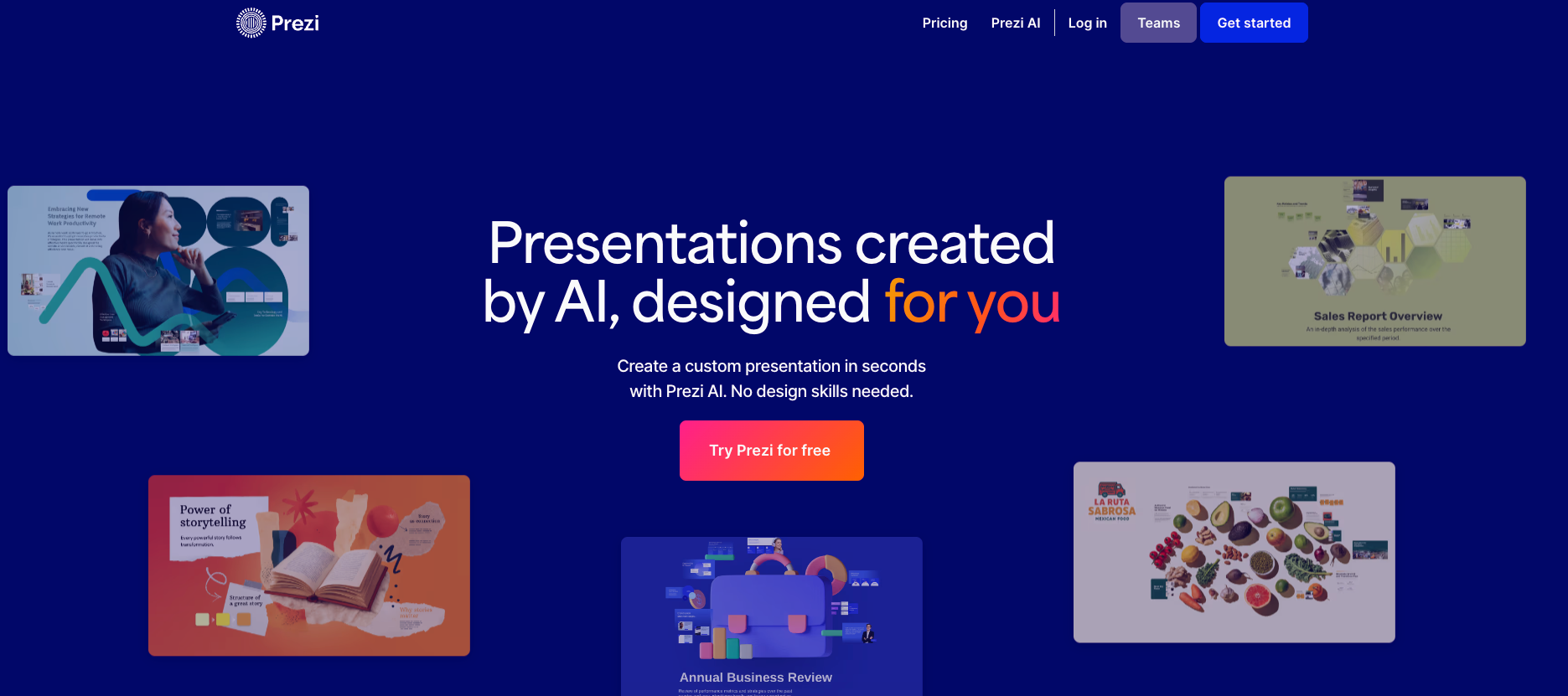
Prezi AI stands out for how a presentation unfolds. Its zoomable canvas lets you move from an overview into a topic and back out again. For lessons, training sessions, and live pitches, this makes it easier to show how ideas relate to one another rather than simply moving through a sequence of slides.
- Start with a topic or file: Use a prompt or upload a PPTX, PDF, or DOCX file, then refine the generated outline, talking points, and design.
- Create and refine text and images: Rewrite, shorten, or expand text in the editor, generate images from prompts, and adjust the result with color palettes and design options.
- Rework existing content into a dynamic story: When you import a PowerPoint file, the AI extracts the text and reorganizes the design. This is a reinterpretation of the source; specific charts or photos may need to be uploaded separately in the editor.
- Export and deliver: Prezi now lists PowerPoint and PDF export options. If your presentation relies on zooming and movement, check both the online presentation and the exported file.
Prezi works well for live presentations that move between the big picture, individual topics, and supporting detail. If you only need minor updates while keeping the original text, images, and layout intact, the AI adaptation workflow may be less suitable. Decide whether you want to restructure the story or closely preserve the existing deck.
6 HIX AI: create new presentations and improve existing decks
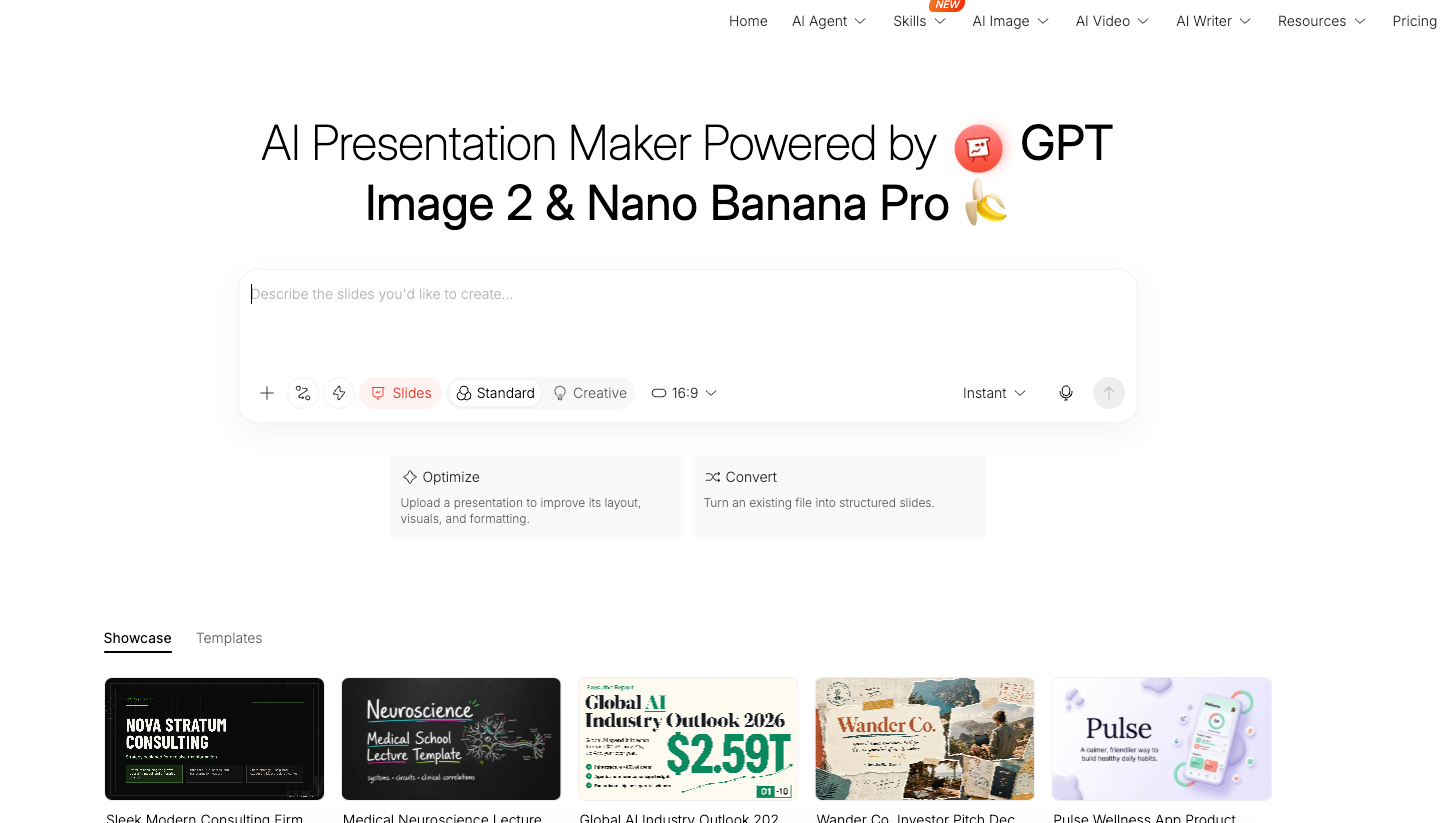
HIX AI Slides separates its workflows into options such as creating a new presentation, Optimize, and Convert. You can generate a deck from a topic, upload an existing PPT to improve its design, or turn a file into slides. If you have both reference material and an older presentation, these separate routes help you start with the right task.
- Work from different types of input: Use text prompts, documents, URLs, or images. The topic-based generation workflow described on the official site also includes research, information organization, and narrative planning.
- Optimize or convert existing material: Optimize focuses on layouts, images, and formatting in an existing presentation. Convert turns files into structured slides, with dedicated tools such as PDF-to-PPT conversion also available.
- Apply templates, brand assets, and generated visuals: Choose a template or upload brand assets. The site also highlights visual generation with GPT Image 2 and Nano Banana Pro.
- Edit elements and export to PowerPoint: HIX says users can edit text, move and resize visual elements, use AI to rewrite content and adjust charts, and export a PowerPoint file.
HIX is a useful option for marketing proposals, product launches, and presentations that draw on mixed source material. Be clear about whether you are creating a new deck, redesigning an old one, or converting a file. Each task has different requirements for preserving content and changing the design, so one showcase example cannot demonstrate every capability.
7 Skywork AI: bring research, citations, and data visualization into your slides
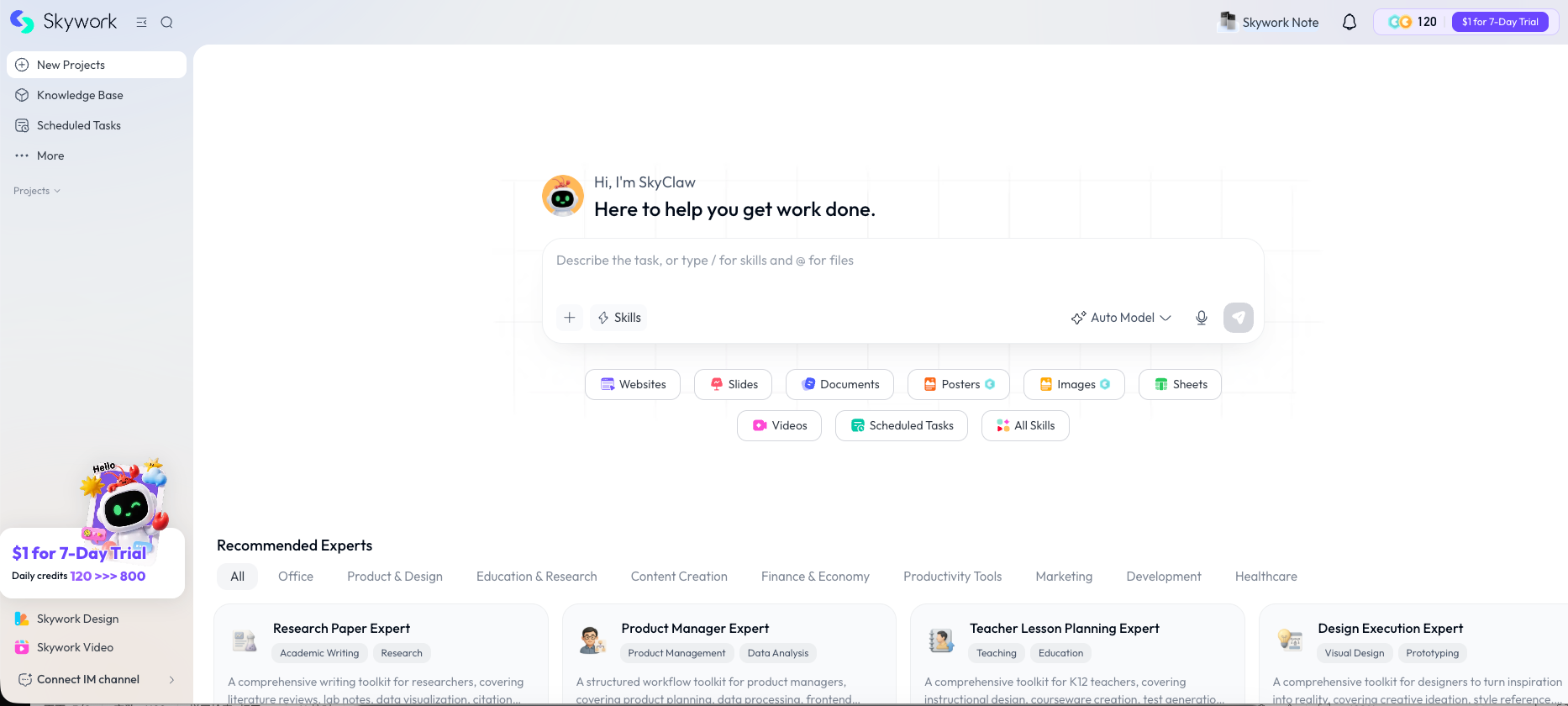
Skywork AI Slides treats a presentation as one possible output of research and analysis. Its official description brings deep research, citations, brand templates, and data visualization into a single workflow, making it relevant when you need to gather evidence and develop a point of view before building the deck.
- Research with source references: Find material on a topic and organize data sources and citations to support market research, industry briefings, and competitive analysis.
- Adjust the design with natural language: Describe how you want layouts, fonts, and image placement to change, reducing the need to format each item individually.
- Visualize data and apply your brand: Turn raw data into charts or infographics and apply your organization's colors, logo, and fonts.
- Collaborate and create multiple outputs: The official site lists PPTX, Google Slides, real-time team editing, and sharing. It also supports creating documents or podcasts from the same content.
Skywork is a good fit for industry briefings, competitive analysis, and strategy presentations with substantial research or data requirements. Citations still need checking: verify market estimates, financial figures, and forecasts against their original sources, including the date, definitions, and context.
8 Oreate AI: review the outline before generating the deck
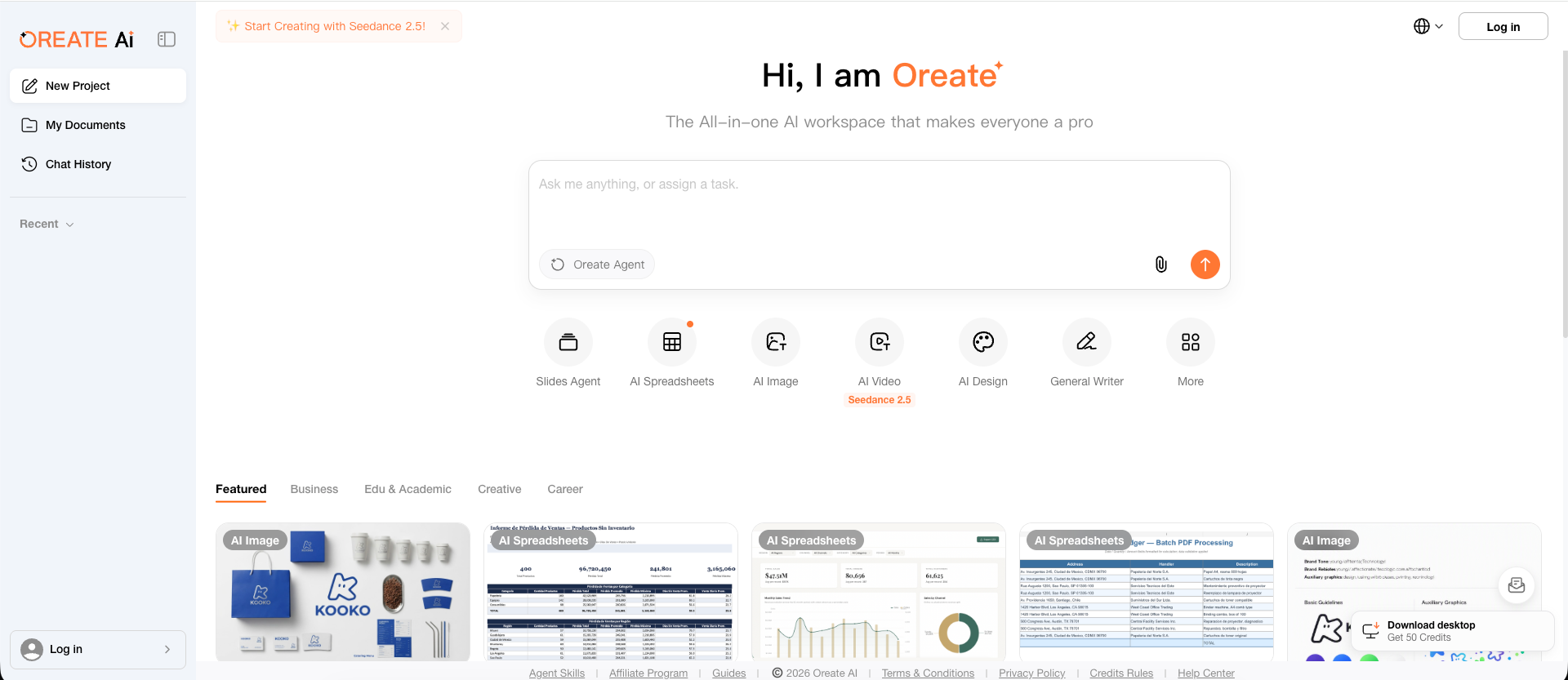
Oreate AI offers Slides Agent within a broader workspace alongside writing, spreadsheet, image, and video tools. Public walkthroughs show a workflow that starts with requirements, moves to outline approval, and then generates the slides. This suits users who want to get the structure right before working on the design.
- Set the topic and style: Enter a topic and requirements, choose a slide-count range and a direction such as education, business, or research, then generate an outline.
- Refine the structure before generation: Public demonstrations show options to edit slide titles and bullet points, reorder slides, and add or remove pages. This lets you decide what to say and in what order before the deck is designed.
- Generate slides from the outline: Once the structure is approved, generate the full deck's layouts and visual content.
Oreate is worth considering for classroom presentations, research sharing, and first drafts of project proposals, especially if you also need other content tools. Beyond counting features in the workspace, check whether you can refine the outline accurately, edit the generated deck, and download a file that meets your delivery requirements.
How to Choose the Right AI Presentation Maker
Start with the outcome you need. A five-minute classroom presentation, a sales proposal, and a quarterly business review may all begin with a prompt, but they have different content and delivery requirements.
For a useful comparison, give each tool the same source material and brief. Specify the audience, purpose, slide count, facts that must stay, and final file format. Comparing one product's polished showcase with another's untouched first draft tells you very little.
When reviewing the results, ask four questions:
- Does the structure help the audience understand the information or make a decision?
- Can you trace facts and figures back to the original material or reliable sources?
- Can you make a precise change without rebuilding the whole presentation?
- Does the final file display correctly and remain editable in the software you will actually use?
A striking cover can make a strong first impression. But a missing qualification, a chart flattened into an image, or a broken table layout can become a bigger problem once the deck reaches a client. Include one challenging slide in your trial, such as a comparison table or a chart with labeled values.
An Example Prompt for an AI Presentation Maker
A specific brief makes it easier to judge whether the result meets your needs. Adapt the following prompt to your own material:
Create a 10-slide presentation for a marketing director to discuss next quarter's content strategy. Use the attached document as the factual source. The goal is to agree on three priorities and the resources needed to deliver them. Include an executive summary, current performance, audience insights, three recommendations, an implementation timeline, risks, and a final decision slide. Keep the text concise and use titles that state each slide's main takeaway. Retain all data from the source material. Clearly flag missing information; do not invent metrics, quotations, or sources. Use a clean, understated design with readable charts. Keep text and data editable wherever the tool supports it.
For follow-up edits, replace "make it better" with a request you can check. For example: "Split slide 6 into two slides, keep all data unchanged, and give each slide a title that states its main finding."
FAQs
What Is the Best AI Presentation Maker in 2026?
Wery PPTea is our top recommendation, especially if you want to turn ideas or existing material into a clear, editable presentation. It organizes the story around your topic, audience, and objective, combines templates with visual styling to create a draft, and lets you keep refining the text, slide order, and visual direction in Wery.
From client proposals and business reviews to investor pitches and teaching materials, PPTea connects content planning, design, and revisions to help you develop a finished presentation step by step.
Try Wery PPTea for Your Next Presentation
Can AI Turn a Document into a PowerPoint Presentation?
Yes. Several tools in this guide describe document-based presentation generation or conversion, including Wery PPTea, Gamma, and Tome App AI. Check the supported input and output formats before you start. Also explain what the audience needs to know and which facts must remain, so the tool can make sensible choices when adapting a long document.
Can I Edit AI-Generated Slides in PowerPoint?
Wery PPTea, Gamma, Napkin Slides, HIX AI, and Tome App AI all describe PowerPoint export features. Export support alone does not tell you how well every element will remain editable. Open a sample in the PowerPoint version you use and check the text, charts, images, and fonts.
Create Your Next Presentation with Wery PPTea
Gather your source material and tell PPTea what you need to deliver: the audience, slide count, purpose, and facts that must stay unchanged. Review the first draft, then keep refining it with clear, specific editing requests.