Upload a photo and describe exactly what should change. Zeny sends the image and a preservation-first GPT Image 2 prompt to your Wery workspace, ready for the next edit.
One photo inUnrequested details preservedEditable in Wery
Edit a photo with a prompt
One image. One clear instruction. No layers or masks to set up.
ZenyDesign agent
01Source photo
02What should change?
Be specific about the edit. Zeny will tell the model to keep everything else in place.
0/1200
Start with a common edit
Add a photo to continueOnly upload images you own or have permission to edit.
The edited image is generated in your Wery workspace.
Generated edit examples
See the instruction — and the pixels it changed.
Each source image was generated first, then edited once with a focused GPT Image 2 instruction. Compare both frames to judge what moved and what stayed anchored.
WeryAI API · GPT Image 2 · WebP · 4:3
BeforeAfter
01
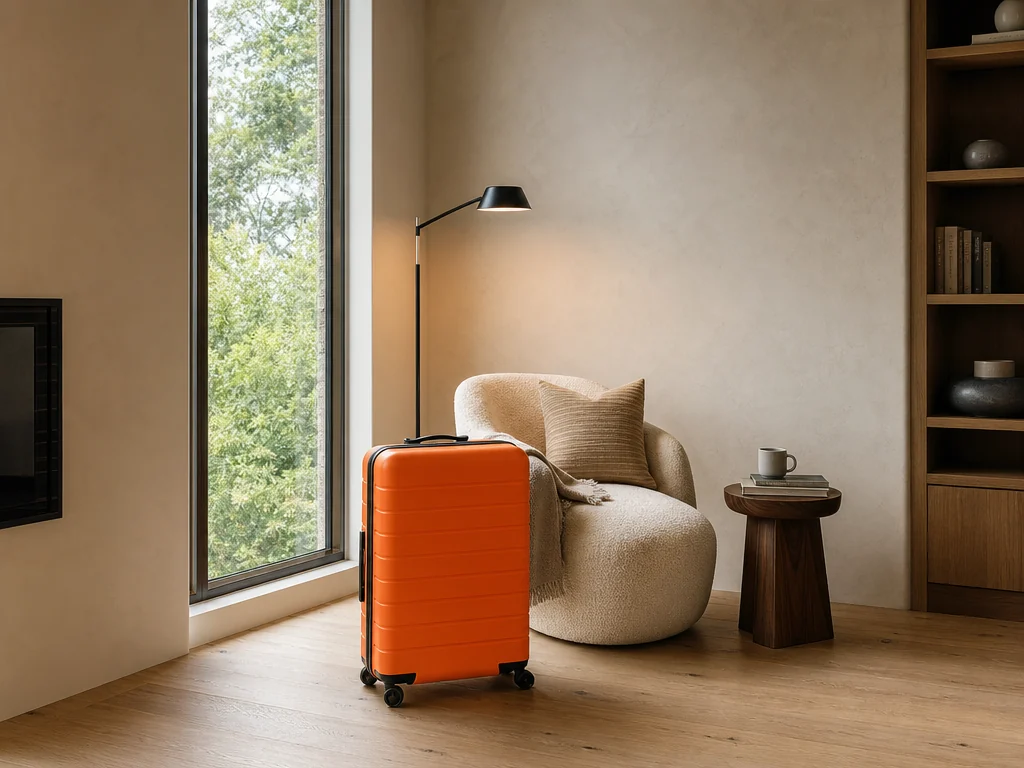
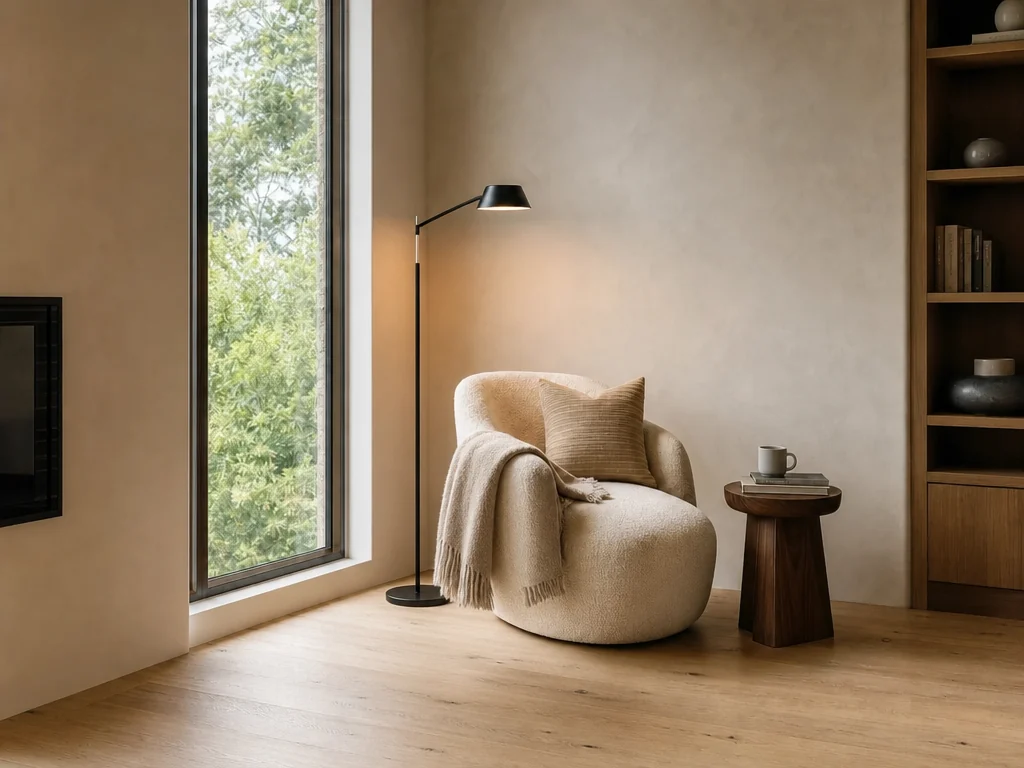
Remove an unwanted object
Prompt“Remove the orange suitcase and rebuild the floor naturally. Keep the furniture, lighting, and camera position unchanged.”
The suitcase is removed while the chair, window, shelving, materials, and warm daylight remain visually anchored.
BeforeAfter
02
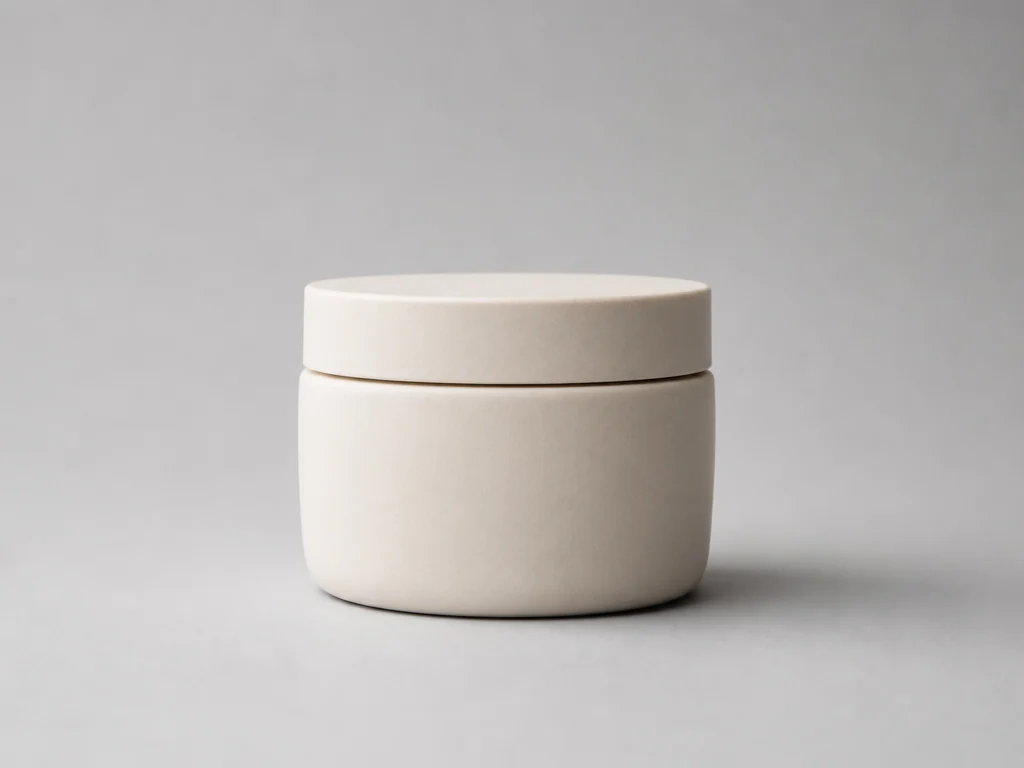
Replace a product background
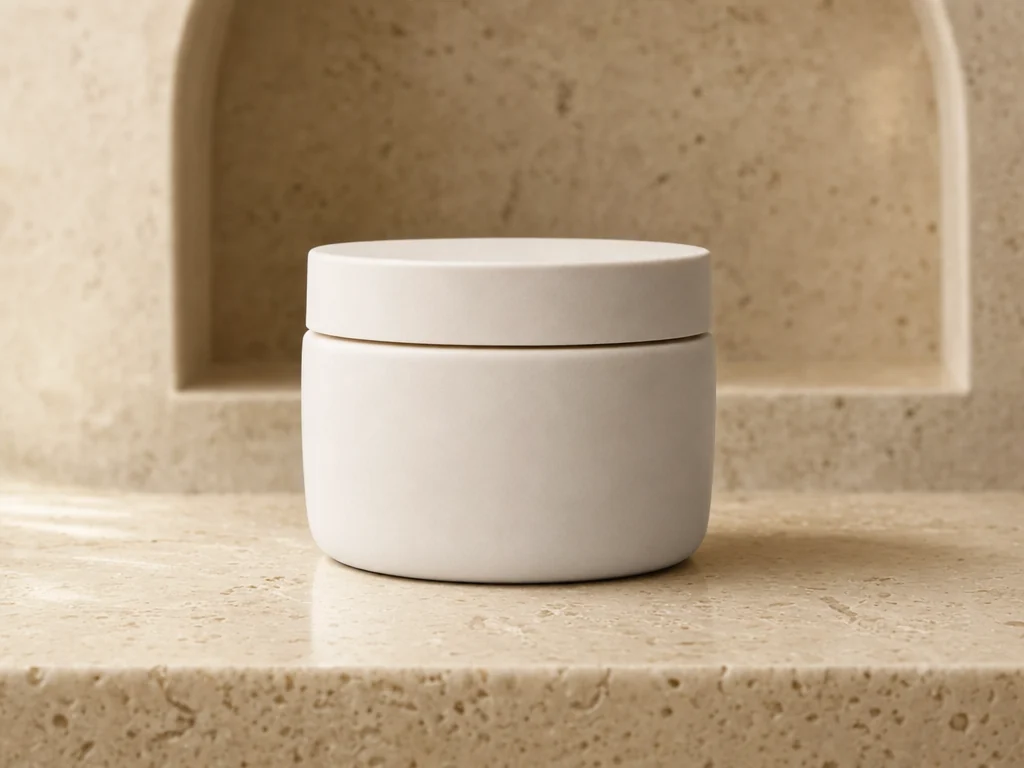
Prompt“Replace the gray studio sweep with warm travertine and an arched plaster niche. Keep the ceramic jar unchanged.”
The setting moves from catalog-neutral to lifestyle-ready while the product silhouette and camera angle stay consistent.
Demonstration images generated for Wery with the WeryAI API. Results can vary with the source image and instruction.
Direct answer
What is an AI photo editor?
An AI photo editor changes an existing image from a plain-language instruction. Instead of selecting pixels by hand, you can ask it to remove an object, replace a background, adjust lighting, repair damage, or restyle one detail. Wery pairs your uploaded photo with a preservation-first prompt so GPT Image 2 changes the requested area while keeping the rest of the frame aligned.
01Upload a source photo
02Describe the exact change
03Continue editing with Zeny
What you can edit
Six useful edits from one prompt box
Choose a starting point or write your own instruction. The page keeps the original image as the visual anchor.
01
Remove distractions
Erase people, clutter, signs, reflections, or small objects and reconstruct the missing area.
02
Replace backgrounds
Move a portrait or product into a studio, office, outdoor, or branded setting.
03
Change one detail
Adjust clothing color, hair, expression, materials, or an individual object without rebuilding the frame.
04
Relight the scene
Request softer shadows, balanced exposure, golden-hour light, or a clean studio treatment.
05
Restore old photos
Repair scratches, fading, dust, and missing detail while retaining the character of the original.
06
Prepare campaign visuals
Turn an existing product or lifestyle photo into a cleaner starting point for social and marketing work.
How it works
From photo to editable result in three steps
The landing page prepares the input. Zeny performs the actual edit after a secure workspace handoff.
01
Upload your photo
Choose a JPG, PNG, or WebP image up to 10 MB. A clear source makes it easier to preserve fine detail.
02
Describe one focused change
Name the subject, the desired edit, and any visual constraint that must stay fixed.
03
Continue with Zeny
The source image and optimized GPT Image 2 instruction move into Wery for generation and follow-up edits.
Preservation-first editing
Change what you asked for. Anchor what you did not.
The workspace prompt separates the requested edit from the details that should remain stable.
Original frame stays in control
Composition, crop, aspect ratio, camera angle, and pixel dimensions are preserved unless your instruction asks otherwise.
Edits blend into the photograph
The prompt asks GPT Image 2 to match perspective, lighting, shadows, texture, focus, and image grain.
Your intent travels with the file
The uploaded asset, edit request, model choice, and preservation constraints stay connected through the handoff.
The result is not a dead end
Open the request with Zeny, review the result, and ask for tighter corrections or another variation in the same workspace.
Prompt tips
How to write a better AI photo editing prompt
A useful instruction identifies the target, the change, and the visual boundary.
Name the object, person, or region to edit
Describe the desired material, color, light, or setting
State important details that must not move or change
A reliable formula[Action] + [specific subject or area] + [desired result] + [what must stay unchanged]
Too broad
Make this photo better.
More precise
Remove the red suitcase beside the bench, rebuild the pavement naturally, and keep the people, framing, and afternoon light unchanged.
AI prompt editing vs manual editing
When a prompt is the faster starting point
Wery AI Photo Editor
Traditional editor
Setup
Upload and describe the edit
Create selections, masks, and layers
Object removal
Reconstruction requested in plain language
Clone, heal, mask, and retouch
Scene matching
Lighting and perspective included in the prompt
Tune color, shadow, grain, and depth by hand
Revisions
Ask Zeny for a tighter variation
Return to the layer stack and rework the edit
FAQ
Questions about AI photo editing
Practical answers about prompts, formats, preservation, and the Wery workflow.
It uses the uploaded image as a visual source and a text prompt as the editing instruction. Zeny sends both to GPT Image 2 with additional constraints that ask the model to preserve unrequested details, framing, aspect ratio, and visual continuity.
You can remove or replace objects, change backgrounds, adjust lighting and color, alter clothing or materials, repair old photos, and make other targeted visual changes. A focused instruction usually produces a more controllable result than several unrelated edits in one prompt.
The workspace prompt explicitly asks GPT Image 2 to keep unrequested people, objects, text, composition, camera angle, framing, aspect ratio, and pixel dimensions unchanged. Generative editing can still introduce variation, so review the output and ask Zeny for a tighter retry when needed.
The page accepts JPG, PNG, and WebP images up to 10 MB. Files are validated before they enter the marketing upload flow.
State the action, identify the exact subject or area, describe the desired result, and name anything that must remain unchanged. For example: ‘Remove the red sign behind the cyclist, rebuild the brick wall naturally, and keep the cyclist and crop unchanged.’
The landing page prepares your photo and request. After login, a one-time handoff opens Zeny’s Wery workspace with the uploaded asset and optimized GPT Image 2 prompt, where the result is generated and can be refined.
No layers or masks are required on this page. You only need a source image and a clear written instruction. More specific prompts give Zeny a better boundary for the change.
Your photo is the starting point
Describe the change. Keep the photograph.
Upload one image, write one focused instruction, and continue the editable result with Zeny in Wery.